Sometimes you might find your slideshow has disappeared in the website editor. There are few possible causes. The first two are the most common causes.
------
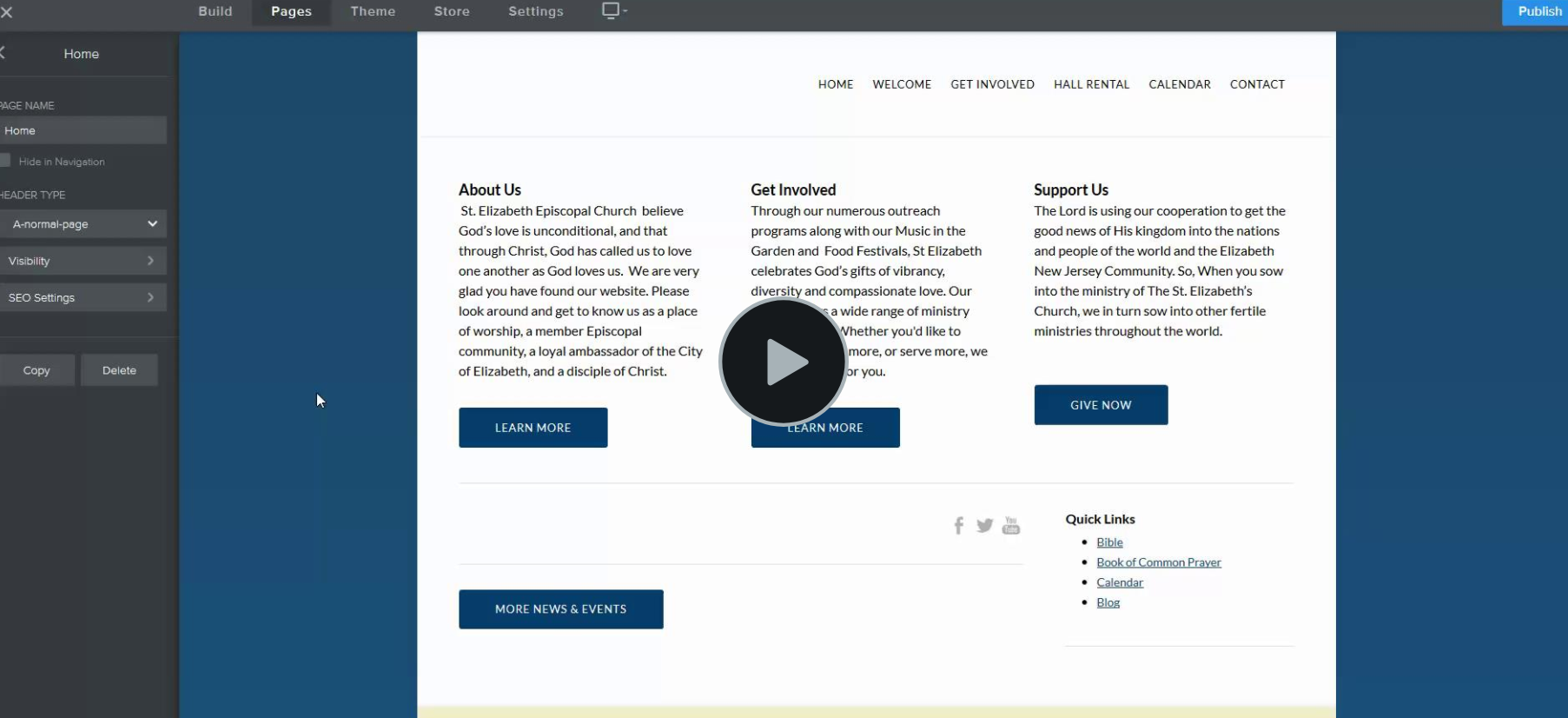
1. The header type for the home page has been switched to a normal page. To fix this, change the header type back to 'home-page'. It may also be called 'tall-header' depending on your version of the website editor. The below video shows how to switch back to the home page header type.
2. If you clicked on the arrow next to "edit slideshow" and selected "edit image" or "upload image", then what happened is that you changed the header from a slideshow to a static image. To convert back to a slideshow you will want to click the arrow in the orange box and select "create slideshow". Once you have the slideshow back, you will want to use select "edit slideshow" and not select "upload image" or "edit image".
------
3. You may been working on the slideshow on another page and inadvertently saved that other page slideshow to "all pages", thereby erasing the home page slides. To fix this problem, you'll have to reload the photos. The below video shows how to do this quickly.
4. You may have accidentally deleted the photos while working on the home page slideshow.
The below video will be of help.
5. Sometimes a glitch with the website editor and/or your internet connection while working on the slideshow can cause the slides to go away. The below video will help with this as well.
6. If none of the above do the trick, try changing the header type to a normal page and then back to a home page header type. This should restore the slideshow and make the "create slideshow" option appear on the orange drop down again.
Video: https://www.screencast.com/t/mQiCKlsxcCy
0 Comments