Sometimes you might see an error when submitting a form. Here are some likely causes.
1. No Recipient for Notifications
You can set the form to send notifications (emails) to yourself and to the person filling out the form. When you want to send the notification to someone filling out the form, you have to choose the email field which will capture the user's email address. Sometimes you might set this up properly but then later remove the email field from the form. Then, when the form is submitted, the form looks for that email field, can't find it, and generates an error. So, double check your notification settings to make sure they look right and correspond to actual email fields in the form itself.
Here is what you will find if you have this error:

2. Email From Name Special Characters
Avoid special characters such as (: ? / | , ) in the "From Name" in the notification settings.
3. Email Addresses Separated by Special Characters or Extra Spaces in email address.
In the notification settings, if you are going to have the form sent to multiple email addresses, please separate the email addresses with a comma. Other characters such as a semi-colon will produce an error.
Or, if you once had multiple email addresses, but now only have one, please erase the comma after the email address. Also, be sure the email address is a proper email address without any extra spaces in it.
3B. Extra Comma in list of Email Addresses
Make sure your list of recipient email addresses do not end with an extra comma. A comma is used to separate multiple email addresses but the comma is not needed after last email address.
4. Payment Errors
- Payment Fields: If you have payments turned on, make sure the payment fields are connected properly in the payment settings. Make sure your payment settings are corresponding to actual fields on the form.
- Stripe Keys: Sometimes you might have incorrect Secret Keys from Stripe or from your payment gateway. Often there is a typo or missing character when copy/pasting these secret keys. We've also seen the two keys from stripe flip flopped so that while they are the proper keys, they are in the wrong fields. Double check you have the right keys from Stripe. If you have another working payment form, compare the keys in the working form to the keys in the non working form.
- Payment Set to $0.00 - If you have not set a price for your items then the user will jump to the success page as the price will be zero.
- Form Logic can also affect the payment page. Please see the Form Logic section on this page.
5. Form Logic
Also make sure all of your form logic is corresponding to existing form fields. If you remove fields that were part of the form logic, an error could occur. If you have form logic that sends the user to the "success page" instead of the "payment page" then the payment page will not show. The payment page actually appears before the success page so if you want to skip to the end of the form, skip to the "success page".
Here is an example of where the form logic should read "Payment Page": 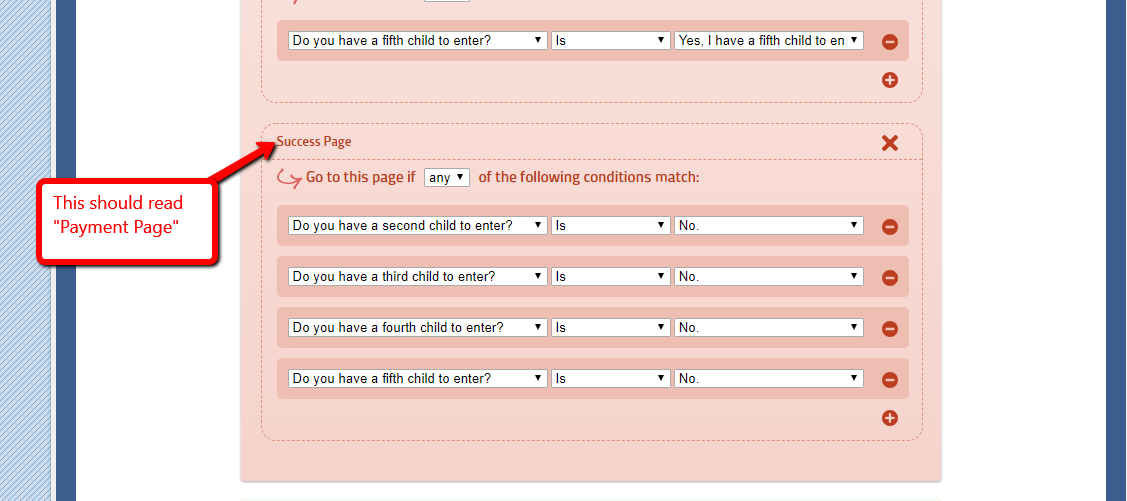
6. HTML coding errors
You can customize the way text appears on the Forms by adding HTML code into the label and description fields. If you have an error in your HTML code, the form will often not submit. A very common error is the failure to close a tag. For example, the <strong> tag is used to make something bold. The opening tag looks like this <strong>. The closing tag looks like this </strong>. So, a properly coded example might look like this. Please stop by our <strong>ticket booth</strong> on Sunday. If you forget to include the closing </strong> tag, the form will often not submit. If you fail to include the closing tag for other HTML tags such as the <u>, <i>, or <b> tags, the form will also not submit. So, a good first step is to check all of your custom coding for closing tags. You should also look for anything that doesn't look quite right with your custom HTML.
More Help
If you've checked all of the above areas and you are still receiving an error, please feel free to contact us.
0 Comments